
Spec File Imports
The Spec File Imports are available to users who want to upload bulk answers into the CQM dashboards. There is a template and answer key for each measure directly in the Health Endeavors tool.
To access the Spec File Import tool, go to the 'Quality' tab and you will see 'Spec File Import' under the QM 2026 menu.

Spec File import has a section for each measure.

Click on one of the measures on the menu to the left. Each measure has a downloadable template. Data MUST be in the proper format for the import to work.
Review the 'Sample Upload Format' for proper formatting example.
Once you have completed your file click the 'Choose File' button to find the file you would like to upload. Then click the 'Upload' button.
Required Data:
Member ID - Medicare Beneficiary ID or if a non-Medicare patient you can enter the member ID for your other patients if submitting for MIPS CQMs.
First Name, Last Name, Date of Birth and Gender - required fields to help with patient matching. Date of birth should be in month/day/year format.
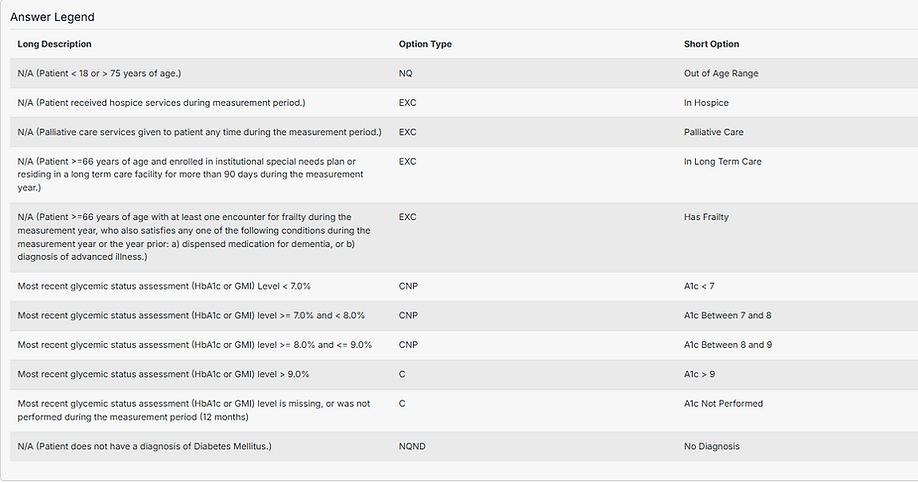
Short Description - Must use the Health Endeavors short description. There is a legend below the format example for each quality measure with acceptable answer options.
Encounter Date - This date must be between 01/01/2026 - 12/31/2026. This is to ensure we are only including patients that are a part of the reportable population.
Comments - This field is option. You may enter up to 150 characters in this field. The Encounter date you enter in the previous field will also be populated in this field upon import and does not count in your 150 characters.
There is an answer legend for each quality measure. Use the 'Short Description' in your files to ensure proper answer of measure.
Once you have uploaded your file a a measure you will get a banner at the top of the page that tells you how many answers were imported and if there were any errors.
For answers where there was an error if you click on the 'View Errors' you will get a list of what errors occurred. You can go back and update these patient in a new upload if there is a better applicable answer.

The error field tells you the Row Number which is the patient row. Example below Patient 3 in my file had a date in the encounter field that was not during 2026 so my answer was not imported. The date in my file could be accurate for the patient which means the answer was not applicable for 2026 so the patient answer will not be updated.


Once your file has been uploaded you will see in the 'Data Source' drop down in the patient grid page. You will choose Spec File and then see a list of files uploaded.
Files will be automatically named by our tool during upload in the following format 'Spec File - User name- Date and Time. This will give each file a unique name and you will be able to easily identify who uploaded the file and when. This also allows for multiple files to be uploaded in a day with a unique ID.